Extra Features
Here are some extra features you might not know about
Quick Displacement
The quick displacement feature is a fast and easy way to create procedural displacement on the selected objects. The quick displacement interface can be found in 3DViewport > Geo-Scatter NPanel > Extra.
Synchronization
In Geo-Scatter, each scatter-systems will always be unique with their own unique settings. Perhaps you'd like some settings to be in sync with others?
How to do so:
-
You will first need to add a new synchronization channel
-
Choose which setting categories are being synchronized.
-
Add scatter-systems member.
Master Seed
The master seed value will have an influence on every single Geo-Scatter seed present in your .blend file.
Pro Tip
- You also have the option to animate this seed. Great if you'd like to batch render an animation of various possible seed outcomes.
- If you are using a 'Pattern' feature, enable the 'Randomize Transform' option to fully benefit from a master seed change.
Export to Instances
If you'd like to export your instances to other software, you will first need to convert your selected scatter-system to Blender instance objects, to do so, use the non-destructive "Selected to Instances" operator.
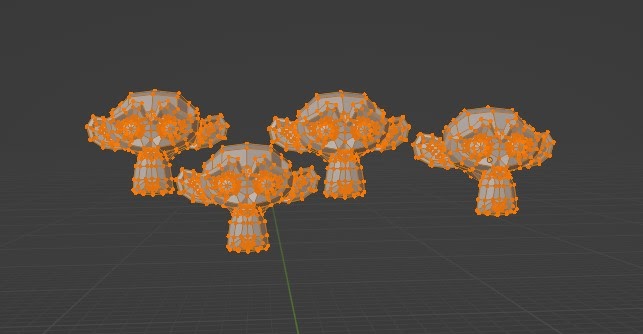
Export As Mesh
It is possible to export your scattered instances as one big merged mesh. Be aware that this feature can be tremendously hard to compute, as it can generate an enormous amount of data. Use it at your own discretion.
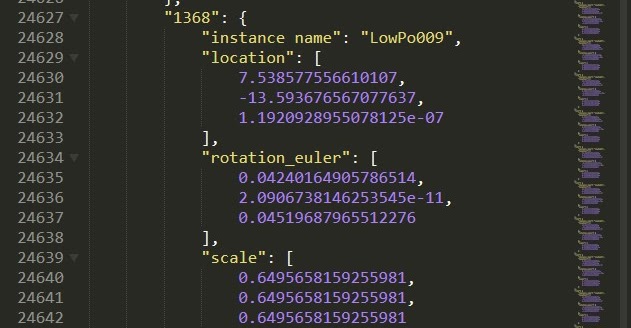
Export to Json
It is possible to encode all scattered point's instances, location, rotation, and scale to a .json format with the export to JSON operator located in Geo-Scatter Npanel > Tweak > System(s) List > Side Drop-Down Menu > Export.
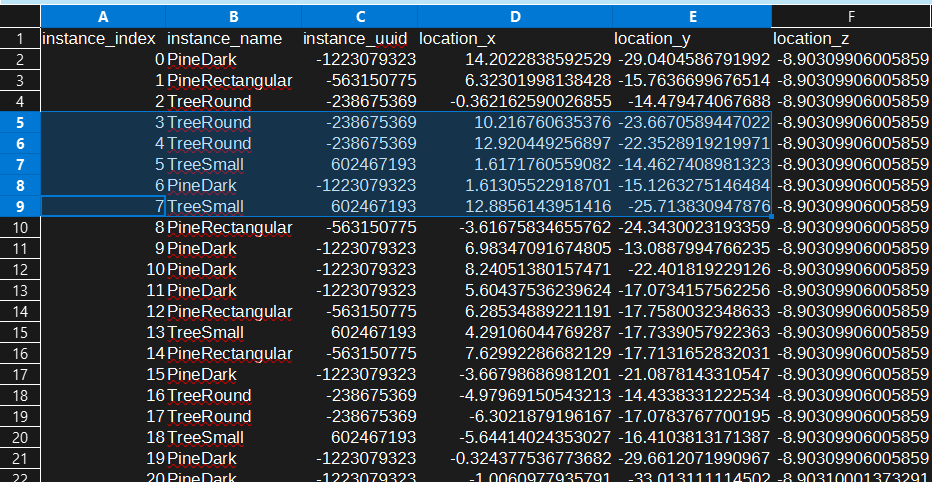
Import/Export as CSV
It is possible to encode all scattered point's instances, location, rotation, and scale to a .csv format with the export as CSV operator located in Geo-Scatter Npanel > Tweak > System(s) List > Side Drop-Down Menu > Export.
It is also possible to import a .csv file to a manual scatter-system. Click here to learn more.

Export to Cryptomatte
If blender cryptomatte passes are enabled, you are able to easily copy the blender cryptomatte text keys of the selected scatter-system to your clipboard. You'll be able to use CTRL+V directly into blender compositor cryptomatte with the right scatters names. This operator is located in Geo-Scatter Npanel > Tweak > System(s) List > Side Drop-Down Menu > Export.
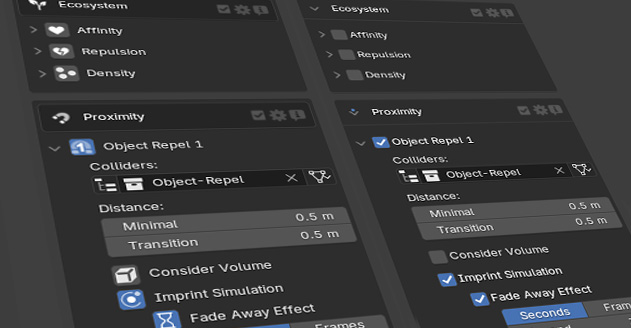
Customize Your Ui
The Geo-Scatter UI is highly customizable. If you are into tweaking our interface cosmetics you can access settings such as Use toggle buttons with icons within our plugin preferences. To access these preferences, either go in Preferences Editor > Addons > Geo-Scatter then click on 'Enter Manager' or open your biomes, Then proceed to Preferences > Interface.
Passive Data Management
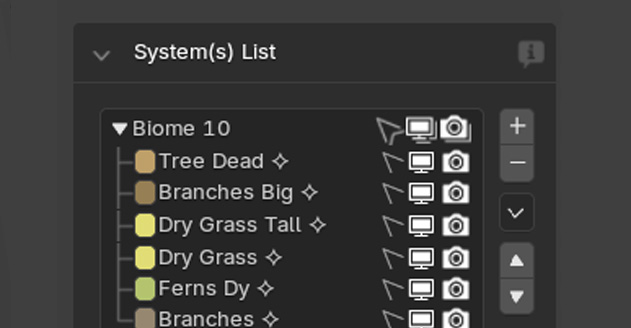
Geo-Scatter supports the duplication/appending/linking of scatter-data automatically.
The following actions are passively supported by our plugin:
- Linking scatters into your scene.
A chain-link icon 🔗 will be used. - Appending scatters into your scene.
The 🢃 character will be added to appended scatters names. - Copy/Pasting objects containing scatters from one file to another with the CTRL C & CTRL V shortcut.
The ⯎ character will be added to these scatters names. - Duplicating your scenes collections.
The ⯎ character will be added as well.
Falloff Graph
Define the precise falloff graph of one of your feature transition. This option will only be useful if you have a transition to work with.
This option has been implemented for most of our procedural features where transition distances are occurring.
Pro Tip
Interacting with graphs supports the
ALT-for-bach feature.
(Select multiple scatters in your system-lister, then hold the ALT key while tweaking your
curve-mapping to apply the same curve simultaneously to all similar graphs of other systems).
Falloff Noise
Blend your features transitions with a noise pattern.
This effect is overlooked in most scattering packages, and it is quite
essential in order to reach a more natural-looking transition in our
opinion!
You'll find the noise transition for many features alongside their falloff graph controls.
Editers
Sometimes there's just that little detail that you need to tweak, a specific tree that would look better just slightly to the left, a rock that would be better for your shot if it was slightly bigger, etc. This is where the 'Precise Edition' category of features comes in handy, it lets you add effects to your scattered objects at the very end of the procedural workflow.
Don't Spam It
Please, use it with moderation. If you wish to mass edit your scatter, consider converting your procedural scatter to manual distribution mode
Note
The alt for batch and preset functionality of our plugin won't apply to edits.
Transforms Editer
So far the sole editer modifier available. You'll be able to tweak specific instances using two empties: a getter sphere to select instances within its radius, and a setter axis to apply transforms. Choose 'Single' for the closest instance or 'Zone'/'Proportional' for all instances within the sphere.